Windows
Download for Windows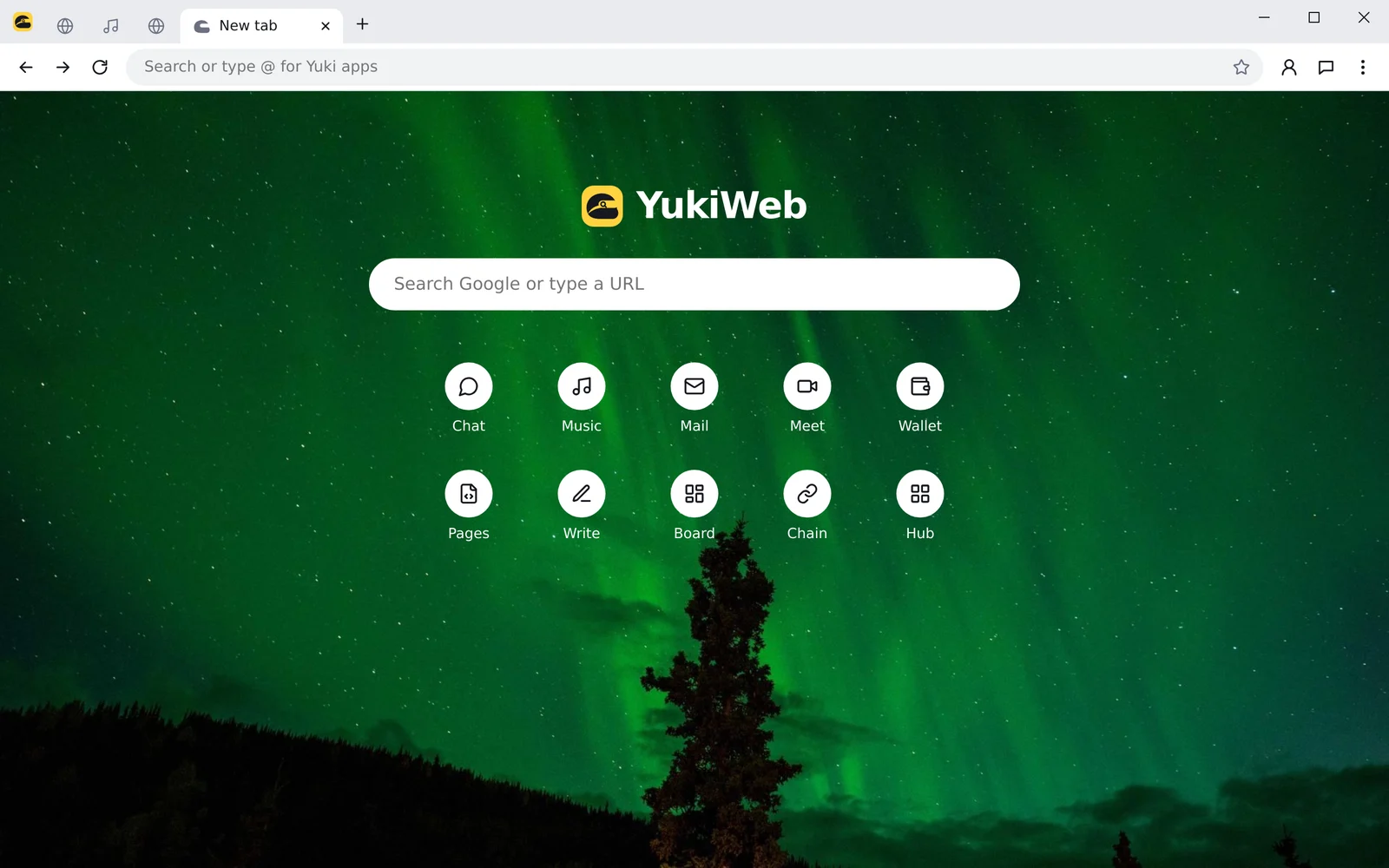
Free
For Windows 10 and 11, and for Android. It installs in a minute and keeps itself up to date.
What the window looks like. Run anyway appears after you click More info.
Yes. No subscription, no ads. The VPN is included too.
On Windows the update downloads in the background and YukiWeb offers a restart. On Android the menu shows an Update button, and the new version installs over the old one.
Usually there isn't enough space: free up about 300 MB and try again. If that doesn't help, uninstall YukiWeb and install it again from this page. Sign in with Yuki ID and your bookmarks and history come back.
No. Yuki ID is only for syncing bookmarks, history and theme between devices.
SmartScreen warns about any new program until it has enough downloads or a paid certificate. The warning goes away as YukiWeb gets known.